One of the most common questions that we get from first time Woobox users is about what our free plan includes. Here at Woobox we offer the ability to fully create, customize, and test your promotion for free before ever needing to pay to take it live.
So that leads to the follow-up question that everyone wants to know: “How do I make the most of this free plan for my promotion”. Great question! In this article we are going to break down the most effective methods to fully test your promotion to ensure it is ready to go as soon as you purchase your plan to have users participate.Admin-Only Mode
As most social media users are aware, Facebook has many strict guidelines when it comes to using their platform and keeping it secure. One of those guidelines is the use of Page Roles for Facebook business pages. These page roles define the amount of access that a user has over the Facebook business page. Woobox utilizes these page roles on our end as well to keep your Facebook business page secure. As you go about creating your first promotion you will see that it will state that your promotion is in admin-only mode. This means that only people with admin access and have logged into Woobox are able to see and make changes to the current promotion. This option essentially means that you are in a testing mode and can only remove this option once a paid plan has been purchased.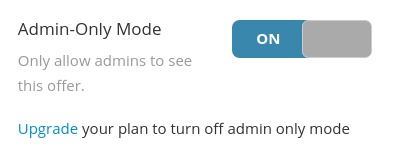
How to Test
There are a few different ways to preview how everything will look, such as using the preview tab in some promotions or building it how it will look with our new builder customization, however there is only one way to truly test how it will all look and operate. With each promotion that is created Woobox provides a direct offer URL that is the main link for accessing your contest. This is found either on the top of the overview page or at the top of the left hand menu side when you are within your promotion. By clicking on this link it will open up your promotion in a microsite, which is the best way to view (and test!) the promotion you've created.Note: On the top right hand corner you will see a button that says "View Offer". You will need to click this if your date isn't live. 
Note: The fangate page can only display once the tab is installed on Facebook. You're able to install the tab while in admin only mode using the Facebook Page Tab section. This will place the tab on your page at the time of installation, and you can access it using the same share URL. However, anyone who is not an admin will only see a message that states, “This page is not published”. Also note that the fangate will only display the first time you access the tab and can only be displayed again if another browser is used or if the cache and cookies are cleared.
What to test in your promotion
Below is a checklist that walks through the steps to test and then a list of items you will want to check out for your promotion: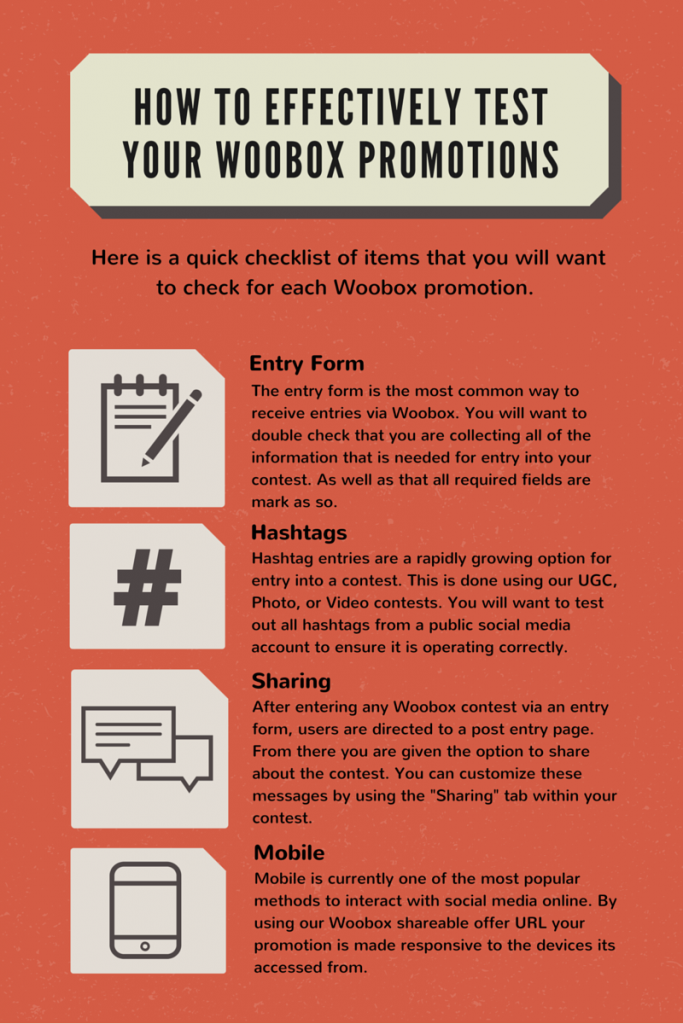
So now that you know how to test your promotion what are the features that you will want to test? Log-in for free to test any app. When you're ready to go live you can then upgrade. Have questions? Check out our forum or email your questions to support@woobox.com.
Tagged

Build a campaign in seconds
Describe a giveaway, quiz, poll, survey, or coupon and Woobox launches a hosted, mobile-ready page in seconds. Free to start, no credit card.
Try Woobox free